Slow Motion, Time-Lapse, and Speed Changes — Speed Ramping with Easing
Shape the pacing of your video with VideoBuff's speed controls. Create slow motion and fast-forward (time-lapse style) at 10% to 1000% speed, change the speed of just part of a clip by dragging markers on the timeline, ease smoothly in and out with speed ramps, and keep voices natural with pitch preservation.
Speed Control Overview
VideoBuff lets you change the playback speed of video and audio clips from 10% (one-tenth speed slow motion) to 1000% (10x fast-forward). You can change the speed of the whole clip or just one section of it, and ease into and out of the new speed gradually for a smooth speed ramp.
Use slow motion to emphasize the key moment in an action shot, or speed up a long work session into a time-lapse-style sequence. Voices keep their natural pitch even when the speed changes, so scenes with dialogue still sound right.
Basic Speed Change
Select a clip on the timeline and change "Range Speed" in the Speed section of the inspector. The slider and the up/down buttons move in 5% steps, and you can type a value to set it to the exact percent.
The clip's length changes with the speed — 200% halves it, 50% doubles it — and the new length is shown under Duration. When a video's audio is still linked to it, the picture and sound change speed together.
Clips that follow right behind it on the same track, with no gap, move along with the change, so no gaps or overlaps appear. Clips on other tracks, such as text and captions, stay where they are.
A clip with a speed change shows a colored band and its speed (%) on the timeline, so you can see at a glance where you changed the speed. Press "↺ Reset" to go back to normal speed.
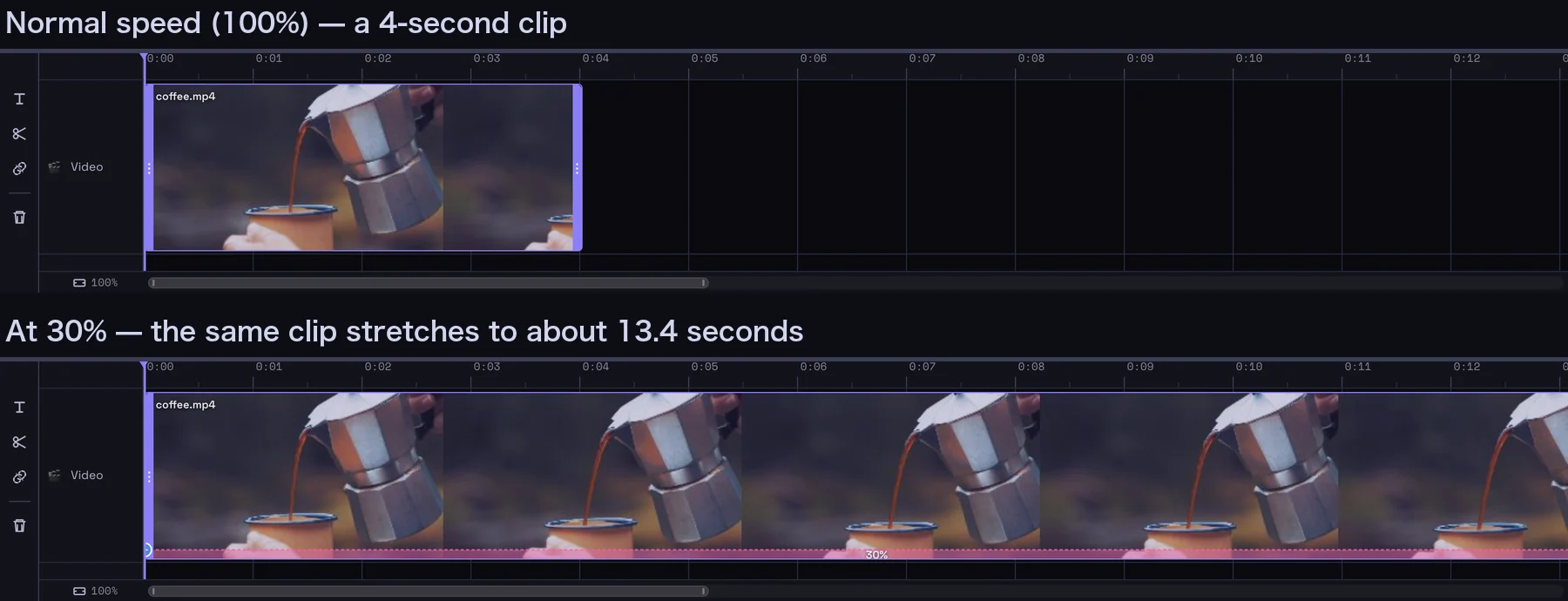
Change the Speed of Part of a Clip
When you select a clip whose speed isn't 100%, clock-shaped markers appear at both ends of the colored band on the timeline. Drag them left or right to set the range where the speed change applies.
Outside that range the clip plays at its original speed, so a single clip can go from normal speed to slow motion and back again. There's no need to split the clip, which keeps your timeline tidy while you add variation to the pacing.

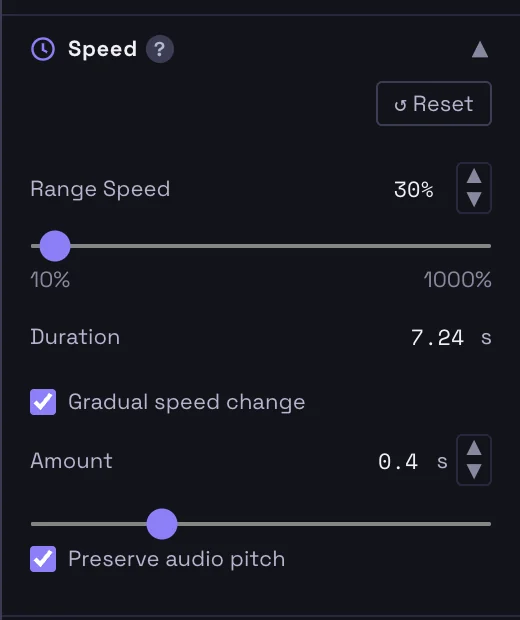
Speed Ramps: Gradual Speed Changes
Turn on "Gradual speed change" and the speed no longer switches abruptly. Instead, it shifts gradually from normal speed to your chosen speed at the start of the range, and back to normal speed at the end.
Set how long each transition takes with "Amount", from 100ms to 3000ms (capped to what fits inside the range when the range is short). For example, at 30% speed with an Amount of 500ms, the clip smoothly slows into slow motion over half a second and eases back to normal speed over another half second at the end.
This works especially well for highlights in action and sports footage.
Preserve Pitch
Normally, changing speed also changes the pitch of the audio: faster makes voices higher, slower makes them lower.
While "Preserve audio pitch" is on (the default), voices keep their original pitch no matter how you change the speed. This keeps narration and interviews sounding natural when you adjust their pacing. Turn it off if you want the pitch-shift effect on purpose.
The setting applies to both the preview and the exported video.
Technical Note: Speed Ramping Implementation
Speed settings are calculated by splitting the clip into five parts: before the range (normal speed), the ramp into the new speed, the section at constant speed, the ramp back to normal, and after the range (normal speed). Within each ramp, the speed changes at a steady rate over time.
In the preview, the speed from this calculation is applied to the browser's video and audio playback rate, and pitch preservation uses the browser's built-in feature. During export, the same calculation determines which moment of the source each output frame comes from, and the audio is time-stretched with SoundTouchJS so voices keep their pitch.