Audio Mixing for Video in the Browser — 3-Band EQ, Compressor, and One-Tap Auto
Polish your audio inside the browser with VideoBuff. Covers per-clip volume, one-tap Auto that analyzes your audio, a 3-band EQ, and a compressor with presets — everything you need to balance narration, music, and ambient sound and even out loudness differences. Also covers the preview-only master volume. Built on the Web Audio API.
Audio Mixing Overview
VideoBuff lets you polish your video's audio right in the browser. Alongside per-clip volume, each clip gets one-tap Auto correction, a 3-band equalizer (EQ), and a compressor.
Making narration easier to understand or balancing it against background music all happens inside the browser. Adjustments are reflected in preview playback right away (including audio embedded in video clips), and the same processing is applied when you export. The waveform on the timeline also updates to reflect your volume, EQ and compressor settings.
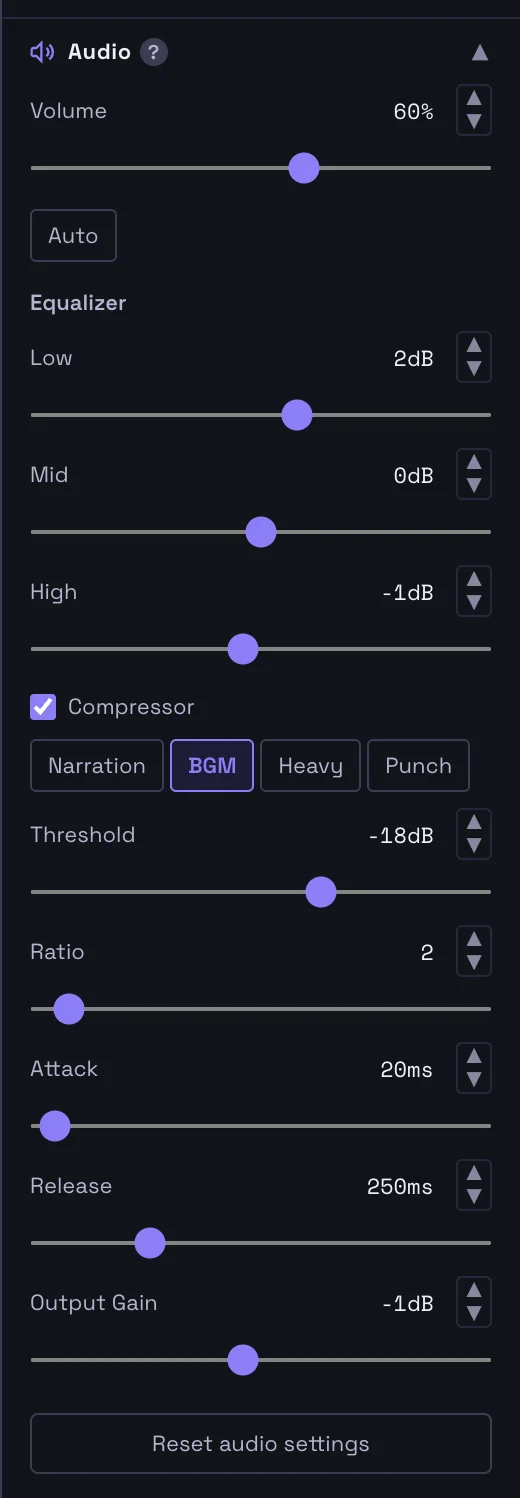
You'll find these controls in the Audio section of the inspector. It appears for audio clips and for video clips whose audio is still linked. While picture and sound are linked, adjusting either one applies the same settings to both. If you've separated the audio from the video, make your adjustments on the audio clip.
Volume Control
Set each clip's level with "Volume", from 0% to 100%. Use the slider or type a value directly.
Common balances — such as keeping narration at 100% while lowering music to 20–30% — take just a moment. Your original audio files are never modified, so you can always change your mind.
Where several audio clips overlap, their sound is added together, so listen to the overall balance as you adjust. If you need a clip louder than 100%, turn on the compressor (described below) and raise its "Output Gain" by up to +12dB (set "Threshold" to 0dB if you only want it louder without compressing it).
To fade background music in and out smoothly, choose "Fade" in the Transition section of the audio clip (see the transitions guide for details).
One-Tap Auto Correction
Tap "Auto" in the Audio section, and VideoBuff analyzes the clip's audio and gently adjusts the EQ and compressor. It tames muddy or harsh sound a little, and applies light compression to material with large volume swings. Audio that barely needs fixing is left mostly as it is.
The analysis uses the part of the clip you're actually using (the trimmed range), and Auto stays unavailable until it's ready. It doesn't change the clip's Volume.
You can fine-tune the result with the sliders afterward, and tapping Auto again after manual edits brings you back to the Auto result.
3-Band Equalizer (EQ)
The Equalizer lets you raise or lower three frequency ranges — Low (below about 300Hz), Mid (around 1kHz), and High (above about 3kHz) — each by up to 12dB in either direction.
- Lower the Low band to reduce rumble from air conditioning or wind, and to clear up muddy voices
- Lower the Mid band slightly to soften a nasal or "boxy" sound
- Raise the High band to add definition to voices; lower it to tame harsh "s" sounds
Slider changes are heard immediately during playback, so you can find the right balance by ear. The EQ is especially useful for making narration easier to understand and for keeping voices and music from clashing.
Compressor
A compressor reins in the loudest parts of the audio to narrow the gap between loud and quiet. Check "Compressor" to turn it on and reveal its presets and settings:
- Threshold: the level at which compression starts (-50dB to 0dB)
- Ratio: how strongly the sound is held back (1 to 20)
- Attack: how quickly compression kicks in (0 to 1000ms)
- Release: how quickly it lets go (10 to 1000ms)
- Output Gain: level adjustment after compression (-12dB to +12dB)
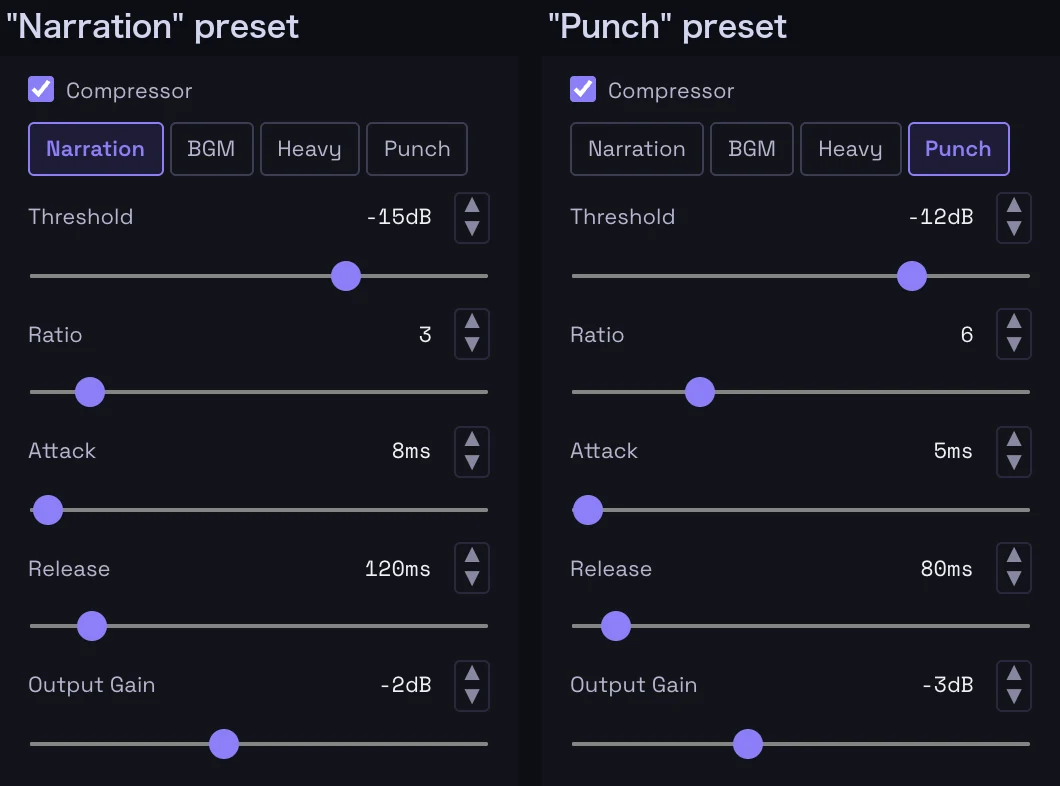
Pick one of four presets — Narration, BGM, Heavy, or Punch — to set all of these at once. Narration gently evens out the dynamics of a voice, and BGM is lighter still. Heavy compresses hard for when you want a consistent level throughout.
Used well, a compressor means viewers won't have to keep reaching for the volume control.
Preview Master Volume and Mute
Hover over the speaker icon in the preview's playback bar to reveal the "Master volume" slider. It changes how loud the editor sounds without touching your computer's overall volume. Click the icon or press M to toggle mute.
The master volume only affects what you hear in the preview — it doesn't change any clip's volume or your exported video. Your setting is remembered the next time you open the editor.
To match the overall loudness of your exported video to standards for YouTube, social media, and other platforms, use the "Loudness" option in the export settings (see the export guide). It's applied to the full mix after each clip's EQ and compressor, so the balance you set here is preserved.
Technical Note: Audio Processing Implementation
Audio processing uses the Web Audio API. Each EQ band is a BiquadFilterNode: lowshelf at 300Hz for Low, peaking at 1kHz for Mid, and highshelf at 3kHz for High.
The compressor is a DynamicsCompressorNode and the output gain is a GainNode, connected in series as EQ → compressor → gain. Preview playback and export use the same processing chain, so what you hear matches what gets exported.
For dedicated audio editing and processing beyond what video editing offers, check out our sister service AudioBuff.